July 22, 2026
What's New: Customizable “Continue shopping” button and other improvements
If you’re using Booqable’s website builder, you can now customize the link of the “Continue shopping” button!
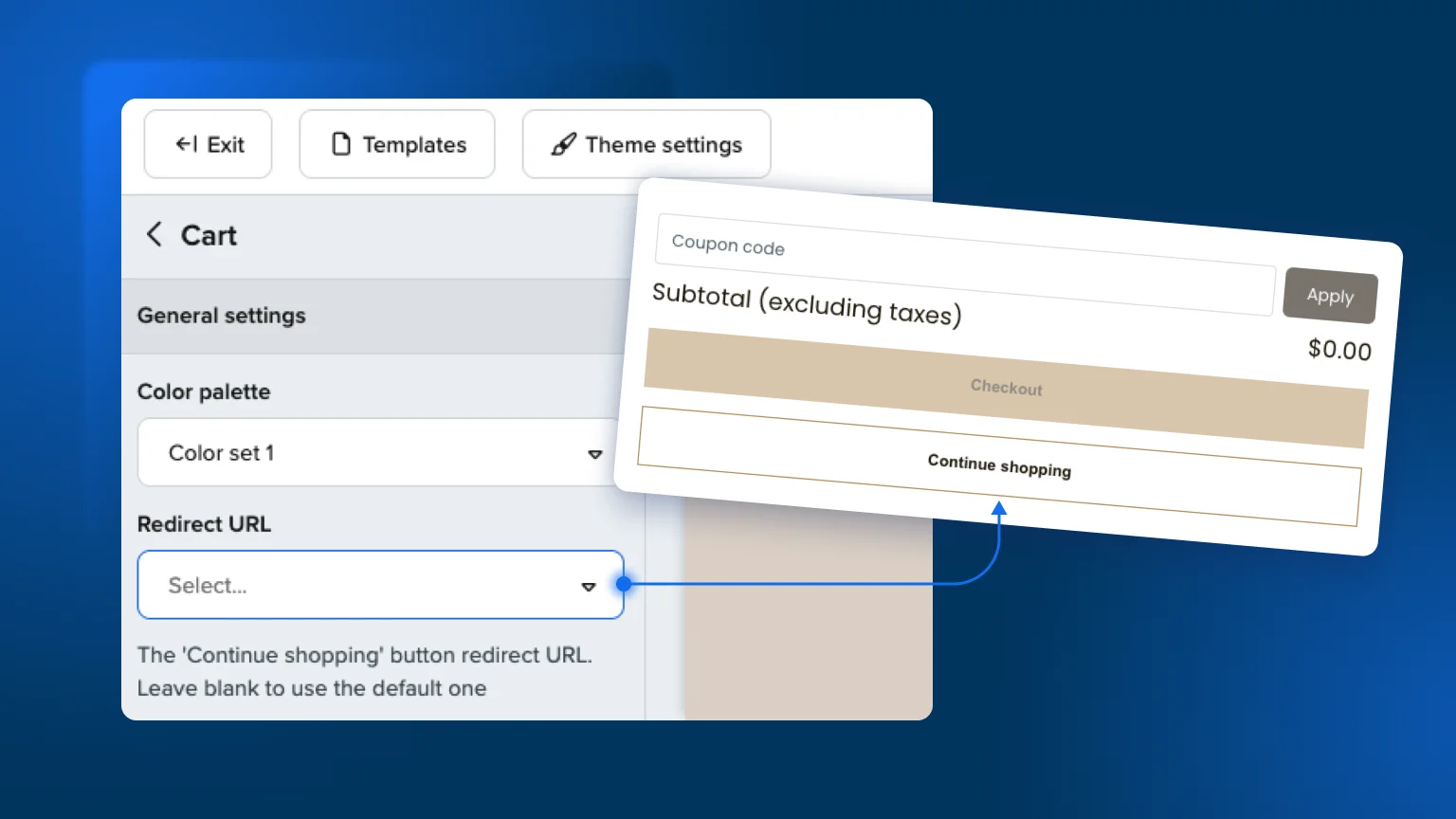
Make sure your customers are sent back to a page showing all of your products so they can continue browsing your store and increase order value.
How to set this up
By default, the “Continue shopping” button will redirect users to your homepage or the “Back to website URL” if one is set. To customize the “Continue shopping” button in the cart specifically, follow these steps:
-
Go to Online store > Website builder > Customize
-
From the Template dropdown, select the Cart template
-
Click on the Cart section from the left sidebar
-
Under Redirect URL, set up your new Continue shopping link by choosing a link from the dropdown.
For example, you can link to the ‘All products’ or a category page from the dropdown.
Other fixes and improvements
Online store
-
Fixed an issue where the online store silently created a new cart in the database on every page a visitor opened, instead of reusing their existing cart.
-
Online stores now load faster: the reCAPTCHA script only loads on pages that actually need it (contact form and login pages) instead of every page.
-
Cross-sell “Select option” for products with variation is now attached to a translation.
API
- More invalid API requests now return a proper “400 Bad Request” error instead of a generic “500 Server Error”, making it clearer to developers that the problem is in their own request.