February 9, 2026
What’s new: Introducing Tap to Pay to the Booqable mobile app!
We’re very excited to announce that Tap to Pay is now available in the Booqable mobile app!
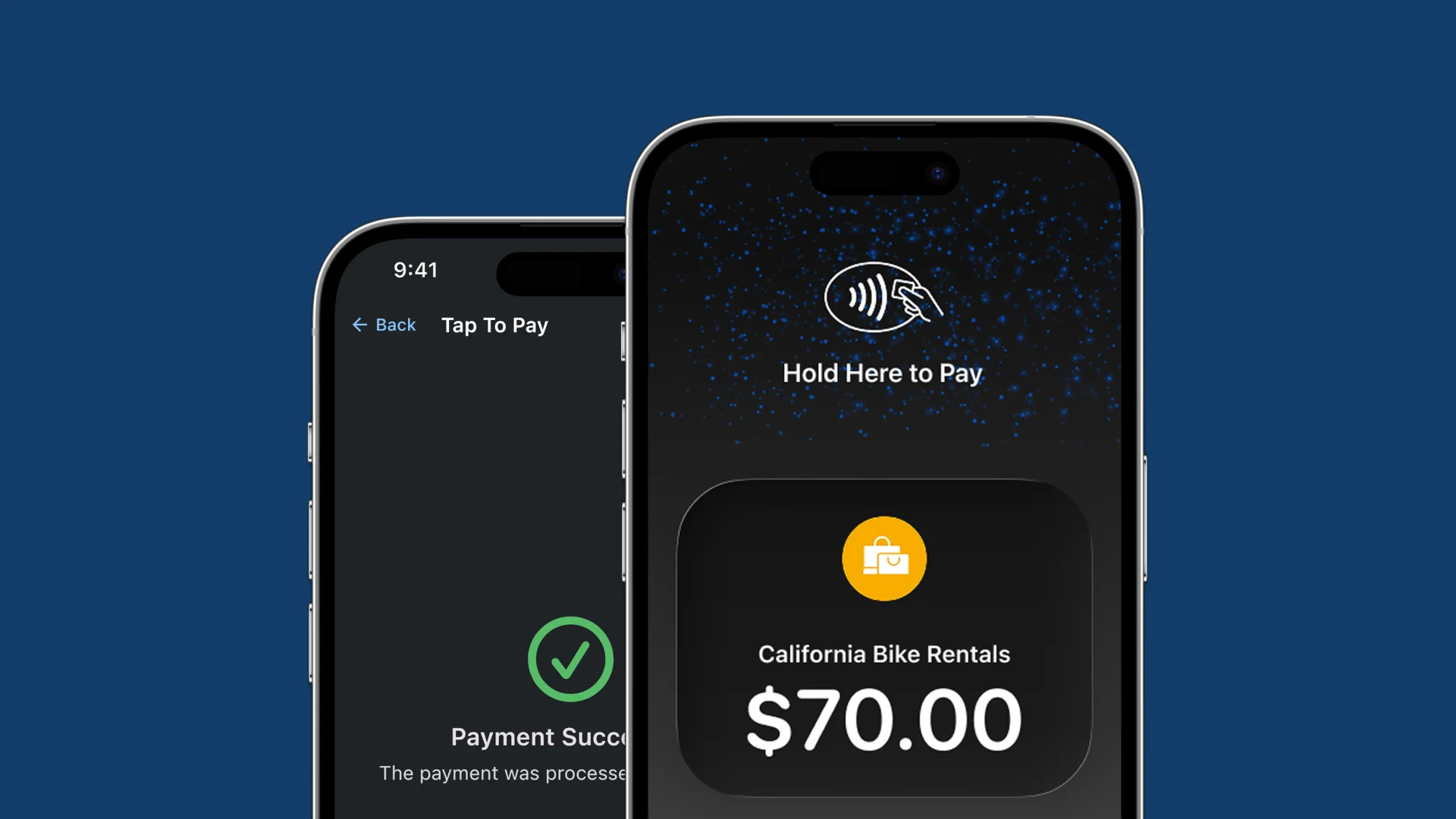
If you often accept payments in-person, Tap to Pay will save you time, minimize error, and allow you to accept payments straight from your mobile device.
Use your phone as a mobile POS and take contactless payments on an order, in-store, on delivery, or on the go. No extra hardware required.
Key features:
- Accept payments directly from your mobile device
- Take payments from anywhere
- No extra hardware required
- Faster pickups & returns
- Secure contactless checkout
How to get access to Tap to Pay:
Tap to Pay is available as part of the Mobile Point of Sale add-on which can be purchased with any of our current pricing plans.
Make taking payments easier with Tap to Pay by adding it to your subscription. Navigate to: Settings > Account and billing > Subscription > Change plan. From there, you’ll be able to select the Mobile Point of Sale add-on to add to your plan.
How to set up Tap to Pay:
- Make sure to first set up Stripe as a payment gateway
- Open the Booqable mobile app
- For instructions on how to use Tap to Pay, navigate to the app’s Settings > Set up Tap to Pay
- Navigate to an order
- Click the Pay button
- Input the amounts you’d like to charge
- Choose the Tap to Pay option from the payment methods
- Then, simply ask your customer to tap their card or mobile wallet to accept the payment!
For more detailed instructions and information, check out the dedicated article in our Help Center: How to set up Tap to Pay using the Booqable mobile app.